Load balancers without health checks are just expensive DNS
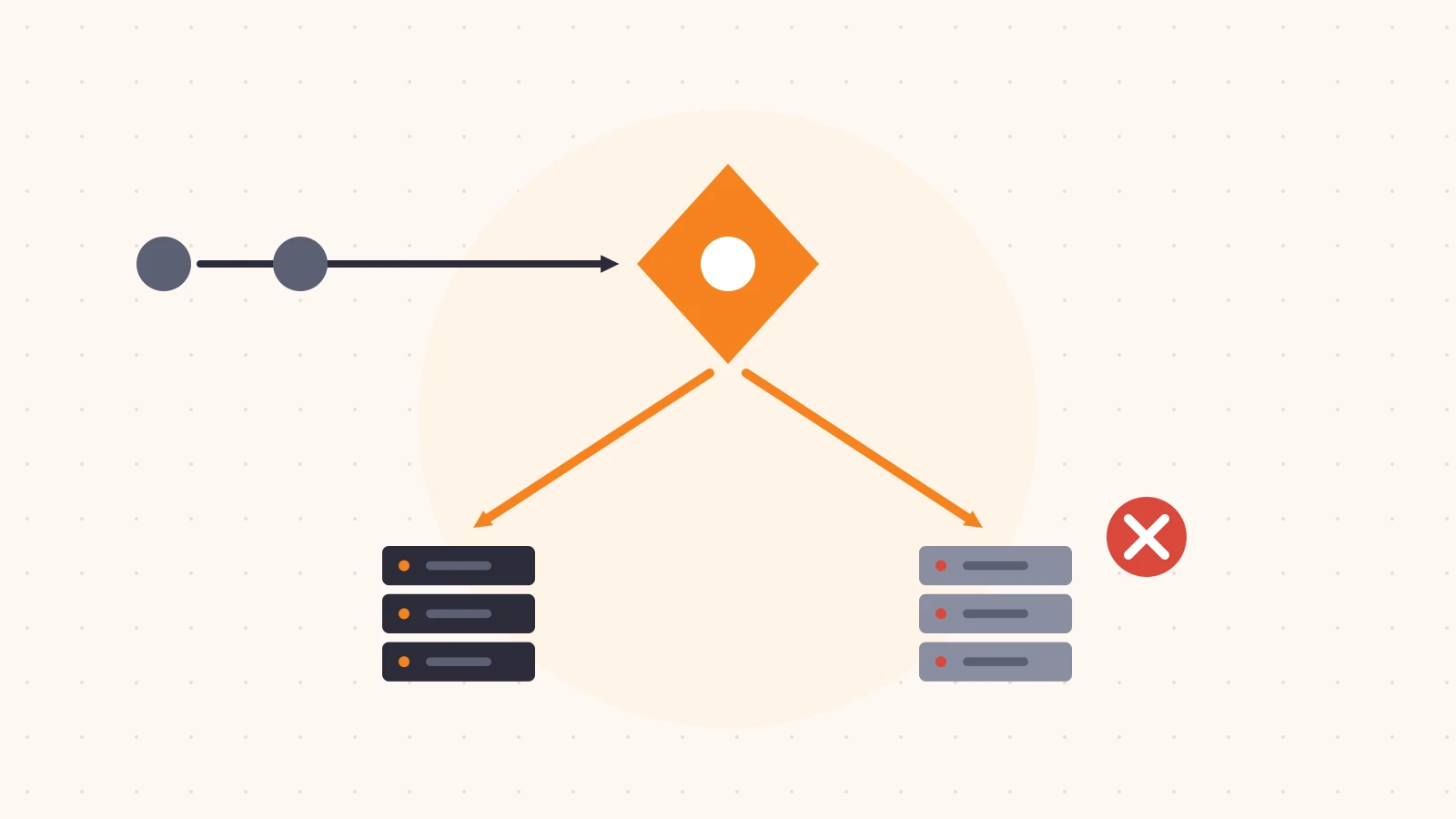
Most teams buy a load balancer for one reason: when something breaks, traffic should go somewhere else. The spreading-load part is nice, but failover is the promise.
That promise depends entirely on health checks. A load balancer only knows a server is down if something tells it. Without a health monitor, or with one that checks the wrong thing, the load balancer will happily keep sending a share of your users to a server that’s returning errors or not answering at all. At that point you’re paying for a more elaborate way of rotating between IP addresses, which is roughly what DNS round-robin already does.
In this post we’ll look at the common ways health checks go missing or go wrong, what a useful monitor looks like, and how to test failover without causing the outage you’re trying to prevent.
How failover quietly stops working
Health checks rarely fail loudly. They fail by being absent, too shallow, or too slow. These are the patterns to look for:
- No monitor attached. The pool exists and has servers, but no health monitor is assigned. Every server is assumed healthy forever.
- The monitor checks the wrong thing. A TCP check confirms the port is open. It doesn’t confirm the application works. A server can accept connections and still return
500to every request. - The monitor checks an endpoint that always succeeds. A static
/healthpage served by the web server, not the app, will return200even when the database is unreachable. - The expected response is too loose. Accepting any
2xxor3xxcan mean a redirect to a login or maintenance page counts as healthy. - Thresholds are too forgiving. Long intervals combined with a high number of consecutive failures before marking a server down can mean minutes of errors before anything changes.
- Monitors run from too few places. A single check location can produce false positives from a local network problem, or miss a regional outage entirely.
- There’s nowhere to fail over to. The fallback pool is empty, points at the same servers, or was decommissioned and never updated.
What a useful health check looks like
A good health monitor answers one question: “if a real user hit this server right now, would they get a working response?”
That usually means an HTTP check against an application endpoint that exercises the critical path, with a specific expected result:
# Example health monitor definition (generic)
type: http
method: GET
path: /healthz
expected_status: 200
expected_body_contains: "ok"
interval: 30s
timeout: 5s
consecutive_failures_to_mark_down: 2
consecutive_successes_to_mark_up: 2
headers:
  Host: app.example.com
The endpoint behind it should be cheap and honest:
- It runs inside the application, not as a static file.
- It checks dependencies the app can’t work without (for example, the database connection), but doesn’t do expensive work.
- It returns a non-
200status when the server shouldn’t receive traffic, including during a graceful shutdown.
Get the Host header right, too. Many origins serve different content per hostname, and a monitor without the correct host can be checking a default site instead of your application.
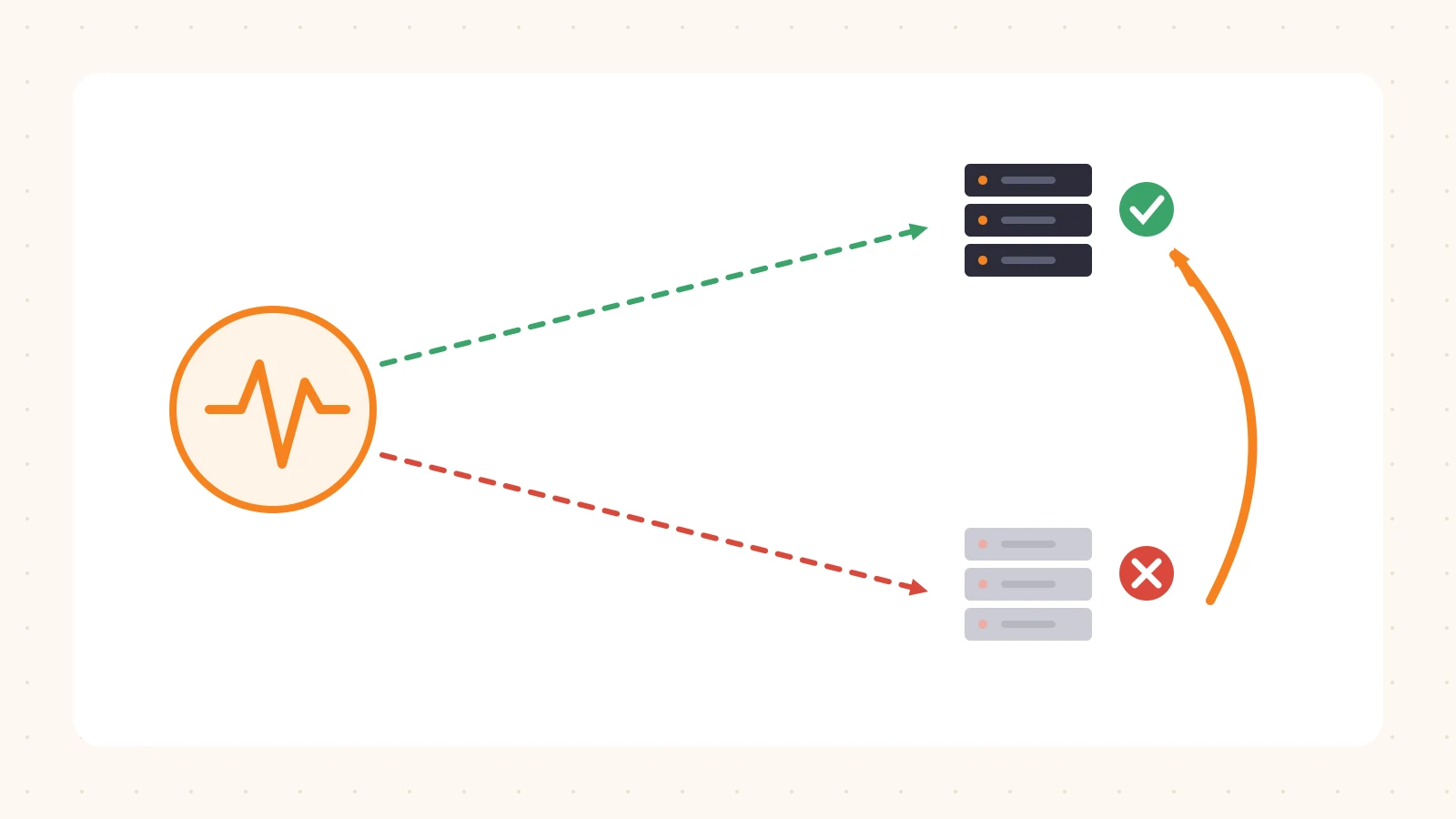
This is the loop you’re paying for: the monitor probes each server, marks the failing one down, and the load balancer moves its share of traffic to the servers that are still healthy. If any part of that loop is missing, traffic keeps going to the dimmed server.
Auditing your setup
Take a read-only pass over every load balancer you run:
- List pools and their monitors. For each pool, write down whether a monitor is attached, its type (TCP or HTTP), path, expected status, interval, and thresholds.
- Check the current health status. A pool where every server has always been healthy may be fine, or it may have a monitor that can’t fail. A pool showing a server as unhealthy for weeks means traffic has been running on reduced capacity, and nobody noticed.
- Review fallback configuration. Confirm there’s a fallback pool, that it has real capacity, and that it isn’t the same set of servers.
- Compare the monitor’s path to what users hit. If users mostly hit
/api, but the monitor checks/on a static site, it isn’t checking the thing that breaks. - Confirm notifications. Someone should be told when a server is marked down. A silent failover hides problems until the last healthy server goes too.
Testing failover safely
The only way to know failover works is to exercise it. You can do that without taking production down:
Use a non-production load balancer first. Mirror the configuration on a staging hostname with the same monitor settings and test there.
Fail the health check, not the server. Make the health endpoint on one server return an error, for example through a feature flag or by having the app report itself as draining. The server keeps running, so you can restore it instantly.
# Have each server add a header that identifies it (for example, x-backend),
# then watch which one answers while you fail one server's health check
for i in $(seq 1 30); do
  curl -s -D - -o /dev/null https://staging.example.com/ \
    | grep -iE "^HTTP|^x-backend"
  sleep 2
done
Time it. Note when you failed the check and when traffic stopped reaching that server. That’s your real detection time. Compare it with what you expect from the interval and thresholds.
Restore and watch it come back. Make sure the server is returned to the pool once it’s healthy, and that it doesn’t flap.
Schedule it. Run the same test in production during a low-traffic window, with the team informed, once you trust the process. Then repeat it periodically, because configurations drift.
Closing thoughts
A load balancer without working health checks still spreads traffic, but it can’t do the one thing most teams bought it for. The good news is that this is very fixable: one honest health endpoint, a monitor that checks it properly, sensible thresholds, a real fallback, and a regular test.
At Plimie we’re building read-only reviews that check whether features like load balancer health monitors are attached and configured to actually catch failures. Our pilot is free and invite-only. If you’d like a second look at your setup, request a free review.