You're paying for a WAF. Is it actually blocking anything?
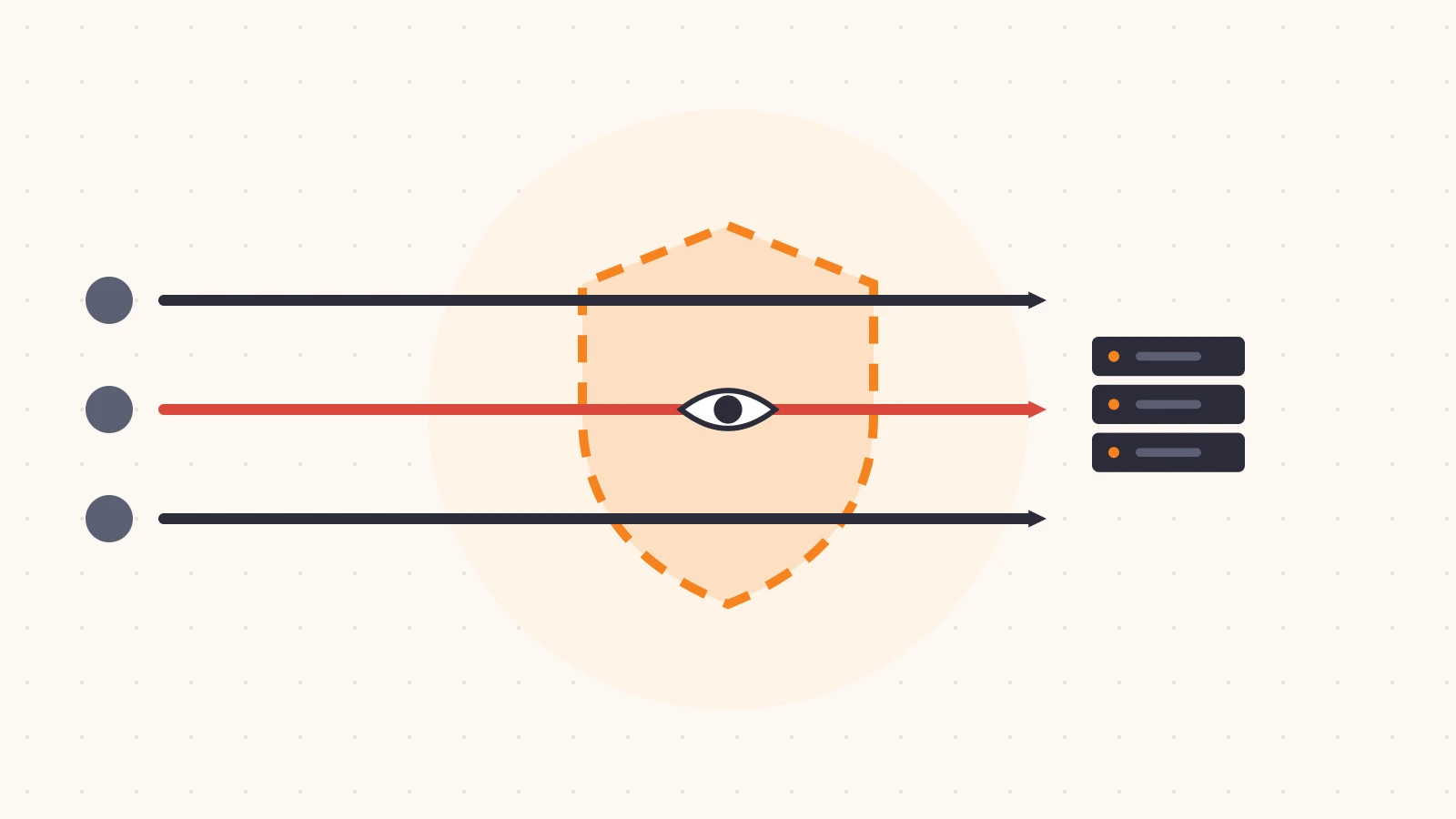
A web application firewall is one of those line items that feels finished the moment it shows up on the invoice. The contract is signed, the feature is “on,” and someone ticked the box on the security questionnaire. But “on” and “protecting you” are not the same thing.
A WAF can be enabled and still block nothing at all. Rules sit in log-only mode after a cautious rollout and never get promoted. Managed rulesets are available on the plan but were never deployed to the sites that matter. Exceptions written during an incident three years ago quietly cover half the application.
None of this produces an alert. Traffic flows, the site works, and the dashboard shows a reassuring number of “events.” In this post we’ll go through why this happens, and walk through a self-check you can do in about ten minutes to find out whether your WAF is actually enforcing anything.
How a WAF ends up watching instead of blocking
Almost every WAF rollout follows the same, sensible path: deploy in a monitoring mode first, watch for false positives, then switch to blocking. The trouble is the last step. It needs someone to own it, and a reason to do it, and both tend to disappear once the initial project closes.
There are a few common ways it goes wrong:
- Log-only was the rollout state, and it became the permanent state. Rules were set to log, simulate, or count so the team could tune them. Nobody scheduled the switch to block.
- Managed rulesets were never deployed. Many plans include vendor-maintained rulesets for common attack classes. They usually have to be explicitly deployed and scoped. If nobody did that, you’re paying for protection that isn’t attached to anything.
- Coverage is partial. The ruleset is active on the main hostname, but not on the API subdomain, the staging host that is accidentally public, or the newer app that launched last quarter.
- Exceptions grew without review. A broad skip rule (“bypass the WAF for this path” or “for this IP range”) was added to fix a false positive during an outage. It stayed. Over time these add up.
- Sensitivity was turned down to zero. Anomaly or score thresholds were raised so high to avoid false positives that in practice nothing ever crosses them.
Each of these is a reasonable decision in the moment. Together, they can leave you with a WAF that produces logs, not protection.
The 10-minute self-check
You don’t need a penetration test to get a first answer. You need read access to your WAF configuration and its event logs, and a bit of honesty about what you find. Work through these five steps in order.
1. List every rule and its action (2 minutes)
Export or view the full list of active rules and rulesets, and write down the action each one takes. Group them into three buckets:
block / challenge   -> actually enforcing
log / count / simulate -> observing only
disabled            -> not doing anything
If most of your rules, or your most important managed ruleset, land in the second bucket, you’ve already found the main issue.
2. Confirm managed rulesets are deployed, not just available (2 minutes)
Check whether the managed rulesets included in your plan are actually deployed, and to which hostnames. “Available” in the UI is not the same as “deployed.” Write down which public hostnames are covered and which aren’t.
A quick way to make this concrete is to list your public hostnames from DNS and compare:
hostname               managed ruleset   action
www.example.com        yes               block
api.example.com        no                -
app.example.com        yes               log
Any public hostname with “no” in the second column is unprotected by the rules you’re paying for.
3. Read the last 7 days of events by action (2 minutes)
Filter your WAF event log for the last week and group by action. You’re looking for the ratio between “would have blocked” and “blocked.”
If you see a steady stream of matches against obvious attack signatures (SQL injection, path traversal, known scanner user agents) and every one of them was logged and allowed through, the rules are working as detectors and failing as a firewall.
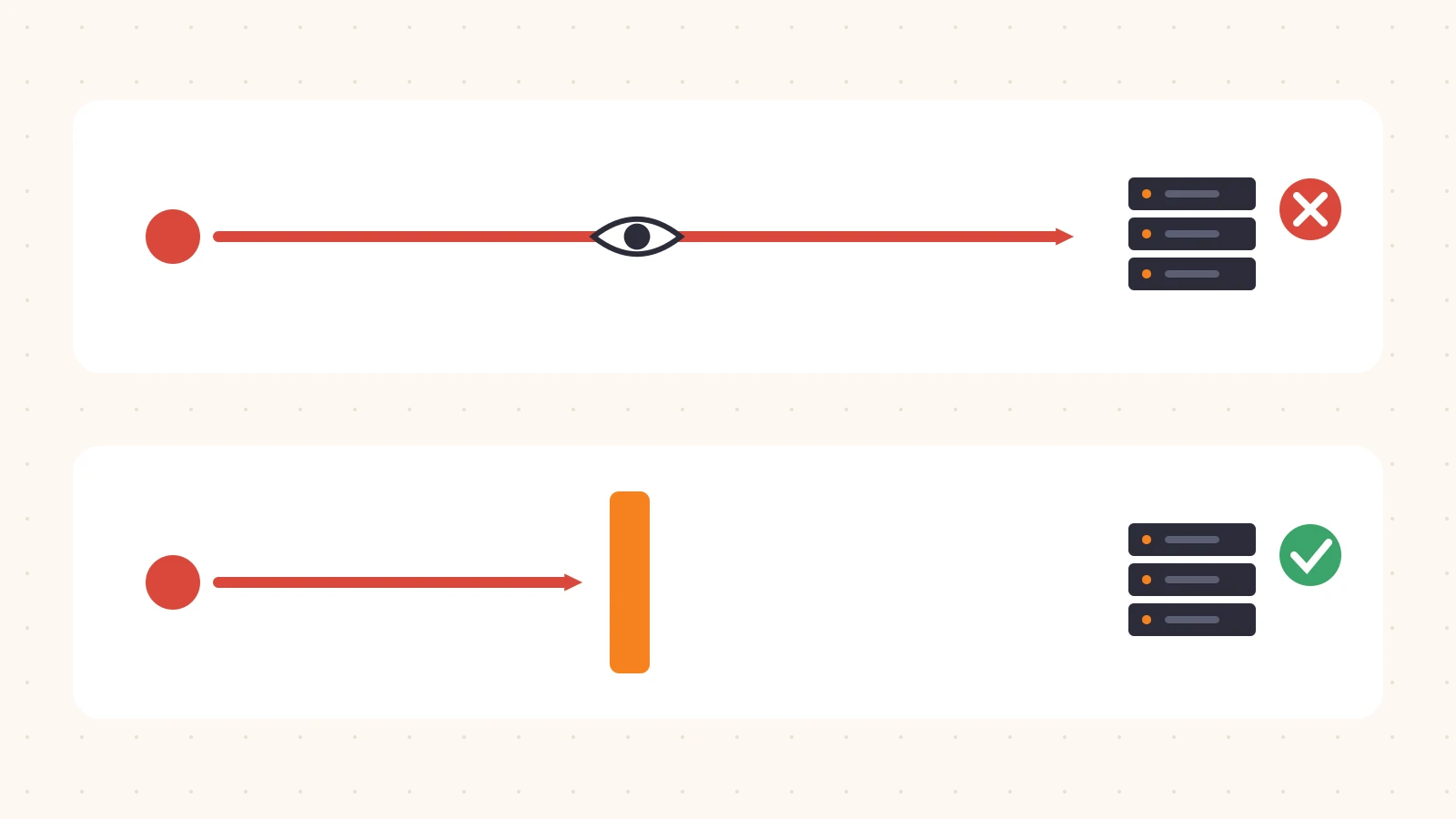
This is the core difference the whole check comes down to. A rule in log-only mode sees the attack and records it. A rule in block mode stops it before it reaches your origin. Both produce an event. Only one of them protects you.
4. Review your exceptions (2 minutes)
List every skip, bypass, or allowlist rule. For each one, ask:
- What does it bypass: one rule, a ruleset, or the entire WAF?
- What does it match: a specific path, or something broad like
/*or a large IP range? - Who added it, when, and is the reason still valid?
An exception that bypasses the whole WAF for a broad path is functionally the same as turning the WAF off for that path. Treat these as the highest priority to review.
5. Send one harmless test request (2 minutes)
Pick a hostname you own and send a request that a standard ruleset should match, without any real payload. A classic, harmless example is a query string containing a recognizable test pattern:
curl -s -o /dev/null -w "%{http_code}\n" \
  "https://www.example.com/?q=%3Cscript%3Ealert(1)%3C%2Fscript%3E"
If your WAF is enforcing, you’ll typically get a block or challenge response (often a 403). If you get a 200, look for the matching event in the log. If the event is there with a log-only action, you’ve confirmed the problem end to end. Only test hosts you own and are authorized to test, and let your security team know before you do.
What to do with what you find
Don’t flip everything to block at once. That’s how WAF projects get rolled back. A safer sequence:
- Start with high-confidence rules. Rules that match obvious attack patterns and have shown no false positives in your logs over the last few weeks are good first candidates to move to block.
- Promote in stages. Move one ruleset or one hostname at a time, and watch error rates and support tickets for a few days before the next step.
- Narrow your exceptions. Replace broad bypasses with rules that skip a single rule for a single path. Add an owner and a review date to every exception.
- Cover every public hostname. Make “managed rules deployed and blocking” part of the checklist for launching any new public hostname.
- Write down the decision. If you intentionally keep something in log-only mode, note why and when you’ll revisit it. That turns an accident into a choice.
Closing thoughts
A WAF that only logs is not useless. The logs are valuable, and monitoring mode is the right way to start. But if it has been in monitoring mode for months, you’re paying for protection and getting telemetry. The fix is rarely technical. It’s usually a missing owner and a step that never got scheduled.
The ten-minute check above will tell you which situation you’re in. If you’d rather have a second pair of eyes, that’s what we’re building at Plimie: a read-only review that checks whether the features you pay for are actually deployed and set up right, without changing anything in your account. Our pilot is free and invite-only, and you can request a free review here.